Varify script does not load correctly on WordPress with WP Rocket
How to recognize the error
Your website runs on WordPress and uses the WP Rocket plugin. The Varify script does not load correctly. Experiments are not delivered or only with a delay, no or very little data arrives in the report, or the window.varify object is not defined in the browser.
The Varify script must load unchanged and without delay so that variations are delivered before the visitor sees the page. It must therefore not be optimized, delayed or cached by WP Rocket.
Why this happens
WP Rocket optimizes JavaScript files in two ways. Both can affect the Varify script:
- Delay JavaScript execution: Delays scripts until the visitor interacts with the page. In the process, the inline snippet with the Varify ID is converted into a
data:text/javascript;base64address. The script starts too late, so variations flicker or are not delivered. - Minify / Combine JavaScript files: Downloads external scripts and serves a copy from your own domain, from the
/wp-content/cache/min/folder. The page loads a cached copy instead of the current file from app.varify.io, so changes to your experiments do not arrive.
How to check whether WP Rocket is the cause
With the developer tools of your browser (Chrome: right-click the page, "Inspect"), you can see where the script is loaded from.
Step 1: Elements tab – was the snippet changed?
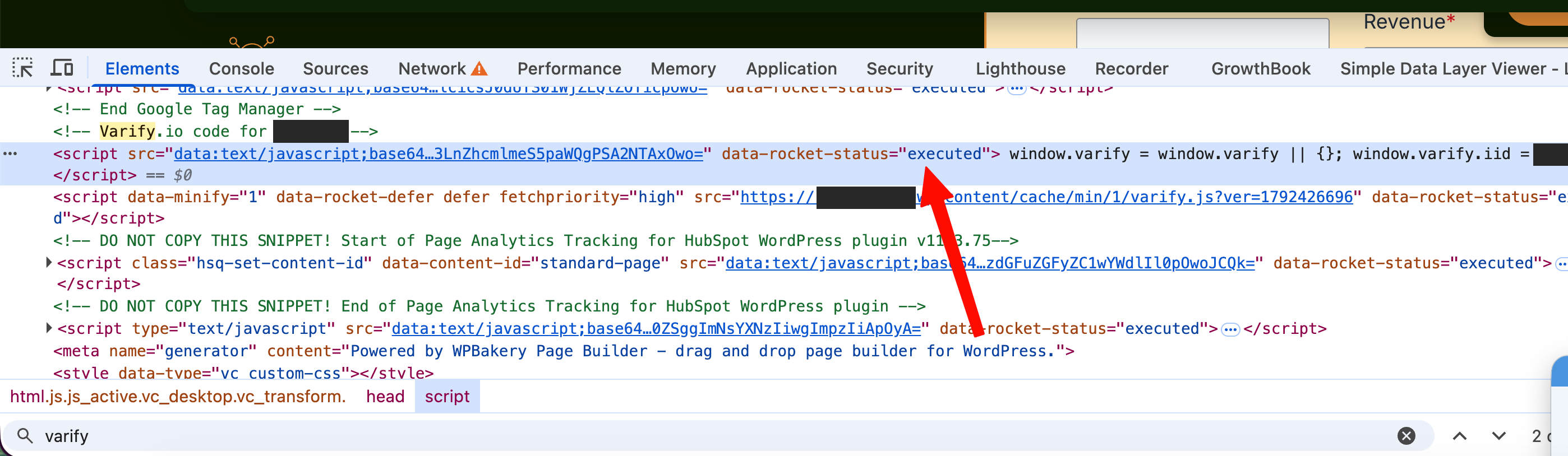
Open the "Elements" tab and search (Ctrl/Cmd + F) for "varify". If WP Rocket has converted the inline snippet with the Varify ID into a script with src="data:text/javascript;base64…" and the attribute data-rocket-status, the snippet was changed. Below it, varify.js is loaded from your own domain under /cache/min/.
Step 2: Network tab – where does varify.js come from?
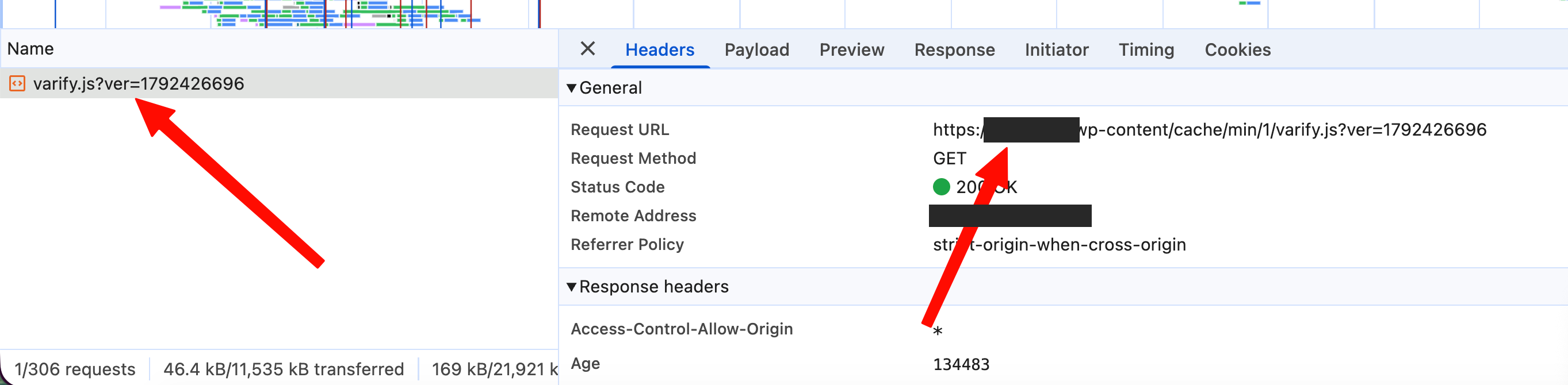
Open the "Network" tab, reload the page and enter "varify" in the filter. Click the file varify.js and check the "Request URL". The correct address is on app.varify.io. If the file is on your own domain, for example under /wp-content/cache/min/1/varify.js, WP Rocket is serving a cached copy. The "Age" value in the response headers shows how long the copy has been in the cache.
Step 3: Compare without WP Rocket
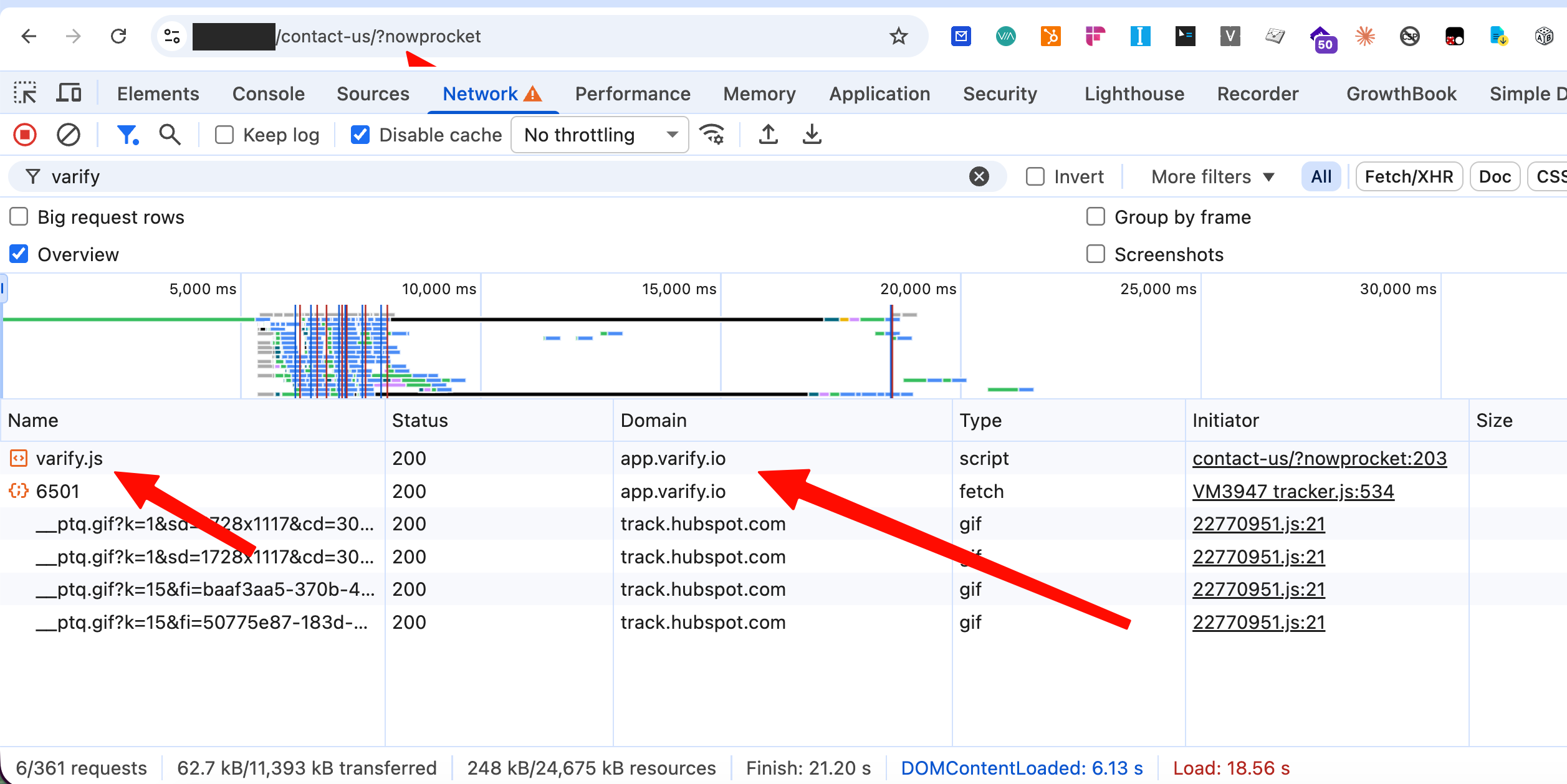
Append ?nowprocket to the URL of the page. This bypasses the optimizations of WP Rocket. If the Varify script loads from app.varify.io there and works, WP Rocket is the cause.
Solution: Exclude the Varify script with data-nowprocket
WP Rocket excludes every script that contains the keyword nowprocket from the delay, for example as an attribute. Therefore add the attribute data-nowprocket to both script tags of the Varify snippet: the inline script with your Varify ID and the script that loads the file varify.js.
<script data-nowprocket>
  window.varify = window.varify || {};
  window.varify.iid = YOUR ACCOUNT ID;
</script>
<script data-nowprocket src="https://app.varify.io/varify.js"></script>
Copy the snippet with your personal ID from your Varify account (Tracking Setup) and only add the attribute data-nowprocket. Do not change anything else in the code.
Alternative: Exclude the script in the WP Rocket settings
If you cannot edit the snippet, exclude it in WP Rocket. In WordPress, open "Settings > WP Rocket > File Optimization" and enter these values:
- Under "Delay JavaScript execution", in the field "Excluded JavaScript Files":
varify.jsandwindow.varify. The second entry excludes the inline snippet. - Under "Minify JavaScript files", in the field "Excluded JavaScript Files" (and, if enabled, under "Combine JavaScript files"):
varify.js. - Save the changes.
For external scripts, use the file name and not the domain. If "Minify JavaScript files" is enabled, the file is stored locally on your server, and an entry with app.varify.io would no longer match.
Clear the cache and check the result
- Clear the WP Rocket cache, for example with "Clear cache" in the WordPress admin bar. If needed, also clear the cache of your hosting and your CDN.
- Reload the page in the Network tab with the "Disable cache" option enabled and filter for "varify".
- Check that
varify.jsis loaded from app.varify.io with status 200 (as in the last screenshot above). - Enter
window.varifyin the console. If an object is returned, the script is loaded.
If the problem remains
- Check whether the console shows the message
Refused to load the script 'data:text/javascript;base64…'. If so, a Content Security Policy of your website blocks the data: addresses that WP Rocket creates. Allowdata:in thescript-srcdirective or exclude the Varify script from optimization as described above. Your hosting provider can help with this. - Check whether other optimization or cache plugins, a CDN or features of your hosting modify JavaScript. They can have the same effects.
- Check that the Varify snippet is included only once on the page.
- If you need further help, contact our support team.
Conclusion
On WordPress sites with WP Rocket, the plugin often delays or caches the Varify script. Add the attribute data-nowprocket to both script tags of the Varify snippet, or exclude varify.js and the inline snippet in WP Rocket. Then clear the cache and check in the Network tab that varify.js is loaded from app.varify.io.