AI CRO Audit
In short
In this article, you will learn where to find the Varify AI CRO Audit, how to start an audit and how to retrieve the results. The AI CRO Audit analyzes any page and provides you with CRO insights, concrete recommendations and 10 test ideas that you can use directly for A/B tests.
Where can you find the AI CRO Audit?
You open the Varify AI CRO Audit directly from your dashboard. In the quick access bar on the right, you will find the AI CRO Audit entry.

Create AI CRO Audit
To create a new AI CRO audit, enter the URL of the page you want to check in the Website URL field. By default, the audit only applies to this one page.
If you want to collect general ideas for your product pages, you can enter a single product page and write in the Additional Instructions field that you want to receive results that can be generally applied to your PDPs.
You can also enter additional information in this field that should be taken into account in the audit. For example:
- what the audit should focus on
- the target group for which the website is intended
- what goal you want to achieve (e.g. more add-to-cart)
- or other useful information.
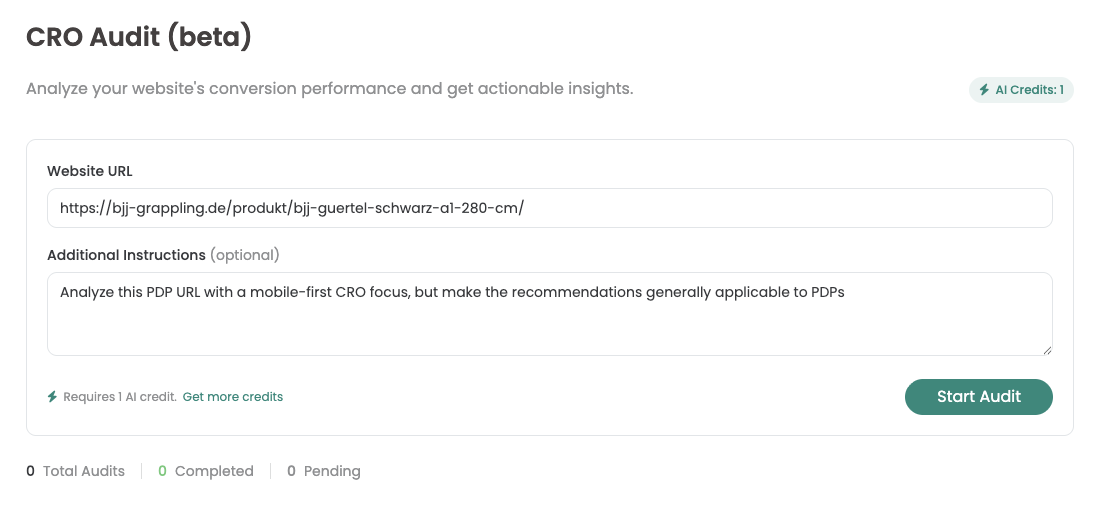
Once you are happy with your entry, start the audit by clicking the Start Audit button. One AI credit is used for each audit.
Each account has one AI credit for free. If you need more AI credits for more audits, you can use ourContact sales team.
The creation can take up to 5 minutes. During this time, your audit has the status pending.
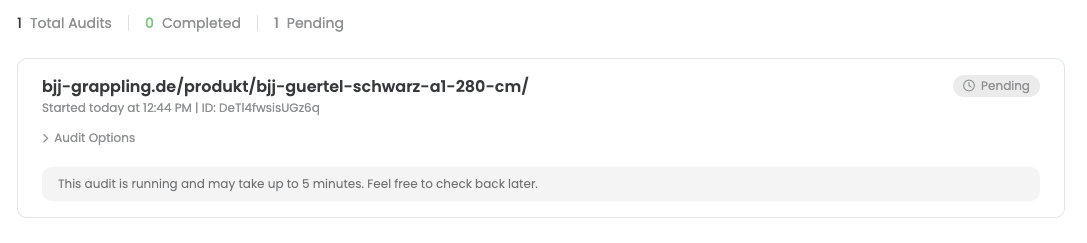
Call AI CRO Audit
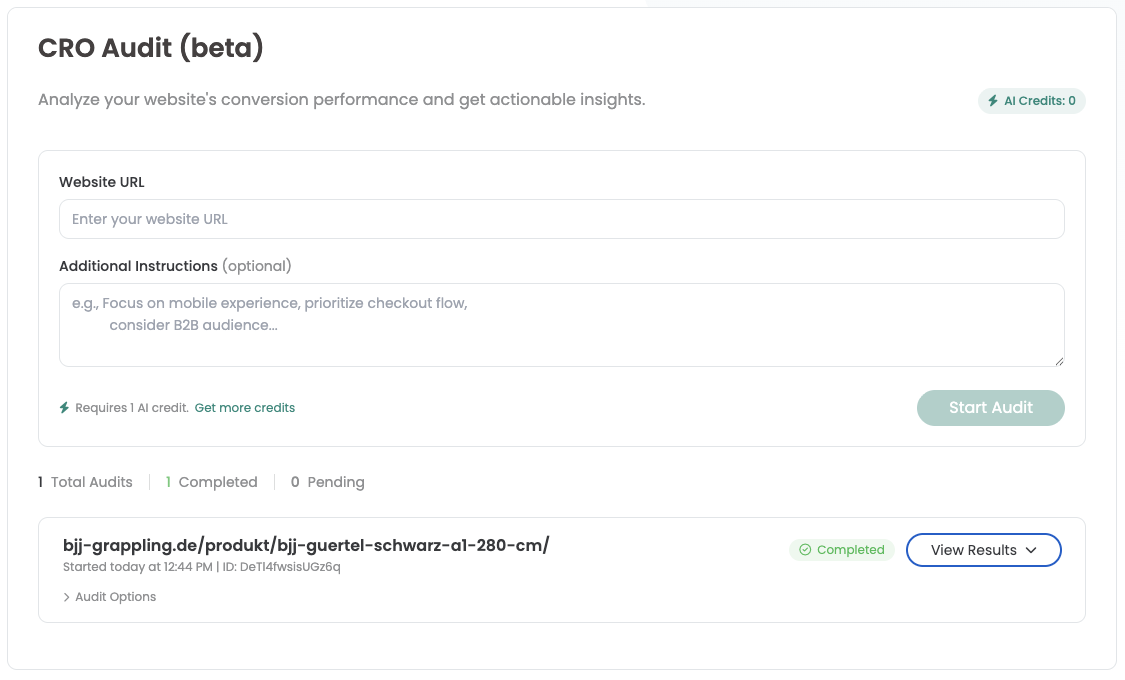
As soon as your AI audit is complete, the status changes to “Completed”. Click on “View results” to open the results with the suggested test ideas.
Under “Audit Options” you will see the entries you made previously.

Important: If there are problems with an audit, for example if it is not completed, runs into an error or remains permanently pending, simply contact our Support team.
Retrieve older audits
All audits remain available. You can return to the AI CRO Audit page at any time to view your completed audits - even without AI Credits.