Edit experiment URL
In short
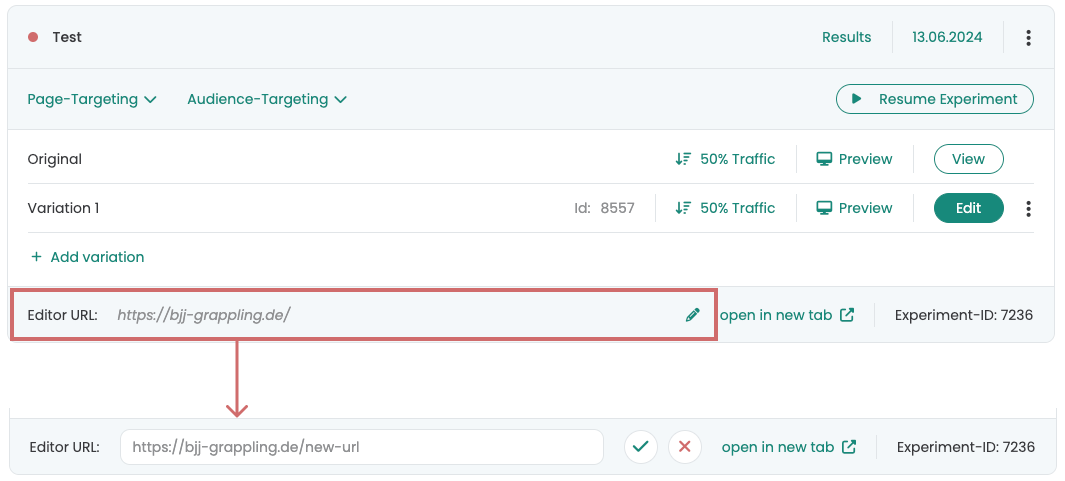
To change the URL of an experiment in Varify, go to the desired experiment in the dashboard, click the pencil icon next to „Edit URL,“ update the URL, and confirm by clicking the green checkmark.
What is the Experiment URL?
To create an experiment, you'll need a URL to open the Varify.io Editor. This URL will then be linked to your experiment. When you click ‚Preview,‘ the URL opens with the ‚preview‘ parameter. If you click “Edit,” the editor will also open for this URL.

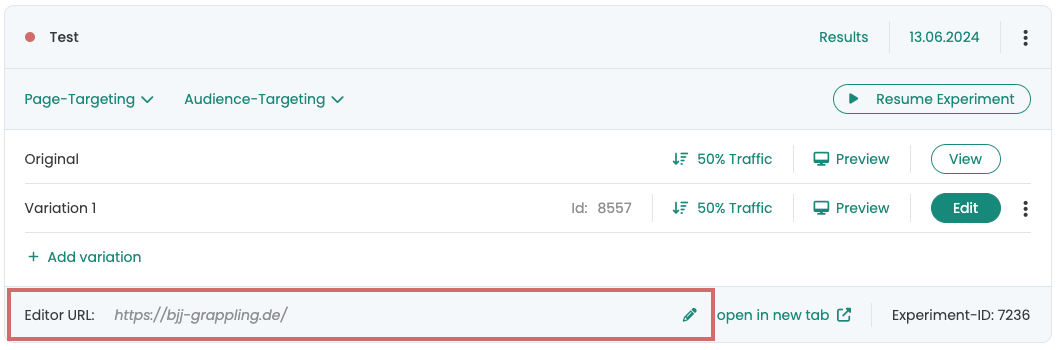
The linked URL is displayed at the bottom left of the experiment under „Editor URL“:
Edit experiment URL
It may be necessary to change the URL linked to the experiment, for example if the original URL no longer exists or the URL of the page has changed.
In Varify, the experiment initially remains linked to the original URL. If an attempt is made to open the preview link or the editor with this URL, this can lead to a 404 error page in the example mentioned.
- Go to the corresponding experiment in your dashboard.
- At the bottom left, you'll find the „Editor URL“ associated with the experiment.
- Click on the pencil icon to the right of the URL.
- Enter the new URL.
- Confirm the change with the green check mark
The editor and the preview link now open with the new URL