Change variation assignment manually
In short
You can manually change your allocation to a test variation via the session or local storage to display the original or another variation.
Why change the variation assignment?
As soon as an experiment is active, you are automatically assigned to a variation, just like any other visitor. But don't worry, you can change this assignment manually at any time. So you can decide for yourself which variation is displayed to you.
Change variation assignment
Check AB-Testing Setup
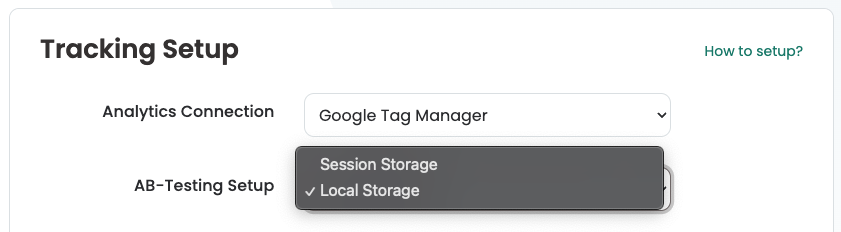
You can easily change your variation assignment in the browser in just a few steps. All you need to do is adjust an value in the session or local storage, depending on which setting you have in your A/B testing setup you have chosen.
Therefore, check whether your A/B testing setup is set to session or local storage. You will need to adjust this in your browser accordingly.
Important Notice:
If your tracking setup is set to session storage, you will be assigned to a variation for each new browser session. Accordingly, your manual assignment may be different again in a new session.
Open session/local storage
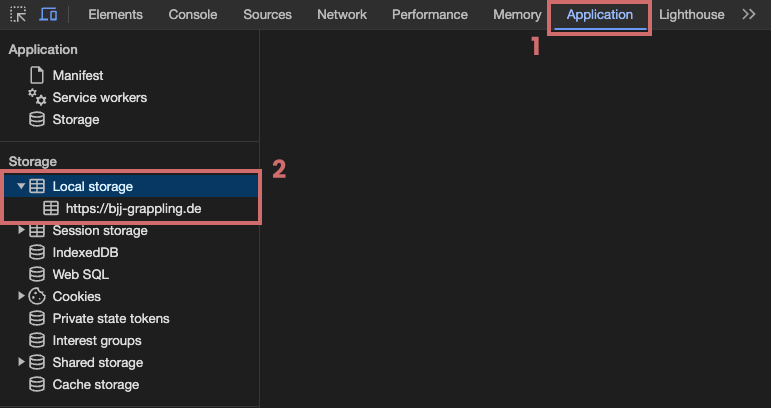
Now go to your page where the experiment is taking place. To change the value in the corresponding storage, first open the developer console in your browser. We recommend that you use Chrome for this.
- Simply press the F12 key or right-click on the page and select "Inspect".
- Then switch to the "Application" tab. If this is not directly visible, click on the >> symbol to display further options.
- In the left-hand column, you will find a drop-down menu for the session or local storage. Open the one that is set in your tracking setup.
- Then click on the URL of your website that is displayed below.
Find experiment in Storage
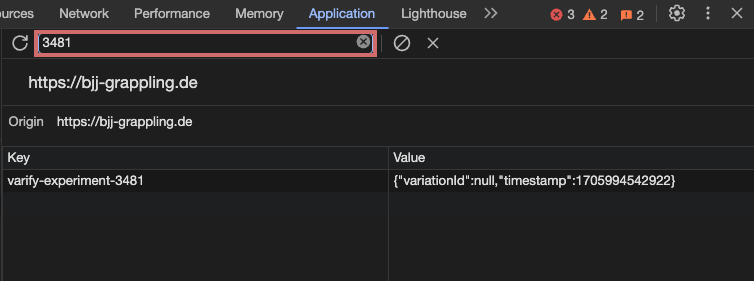
To find the specific storage entry for the experiment whose variation assignment you want to change, you can simply use the experiment ID in the search bar.
Change storage value
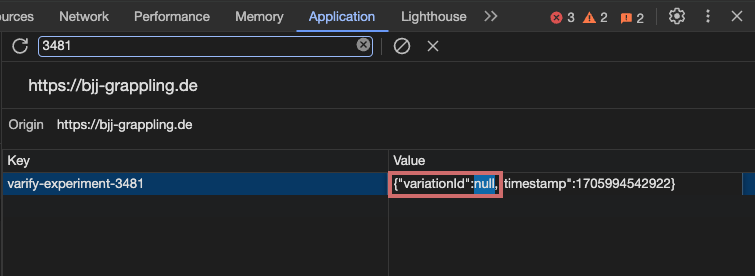
Now you can change the value in the "Value" column directly to "variationId:" to adjust your variation assignment. (double-click)
- Enter the Variation ID that you want to be assigned to.
- If you want to return to the original variation, simply enter the value to null .
After you have made the change, save your customization (press Enter) to activate the new assignment. When you reload the page, you should see the variation you have assigned yourself to.