Experiment Dashboard
Hover over the individual elements of the dashboard to find out more.
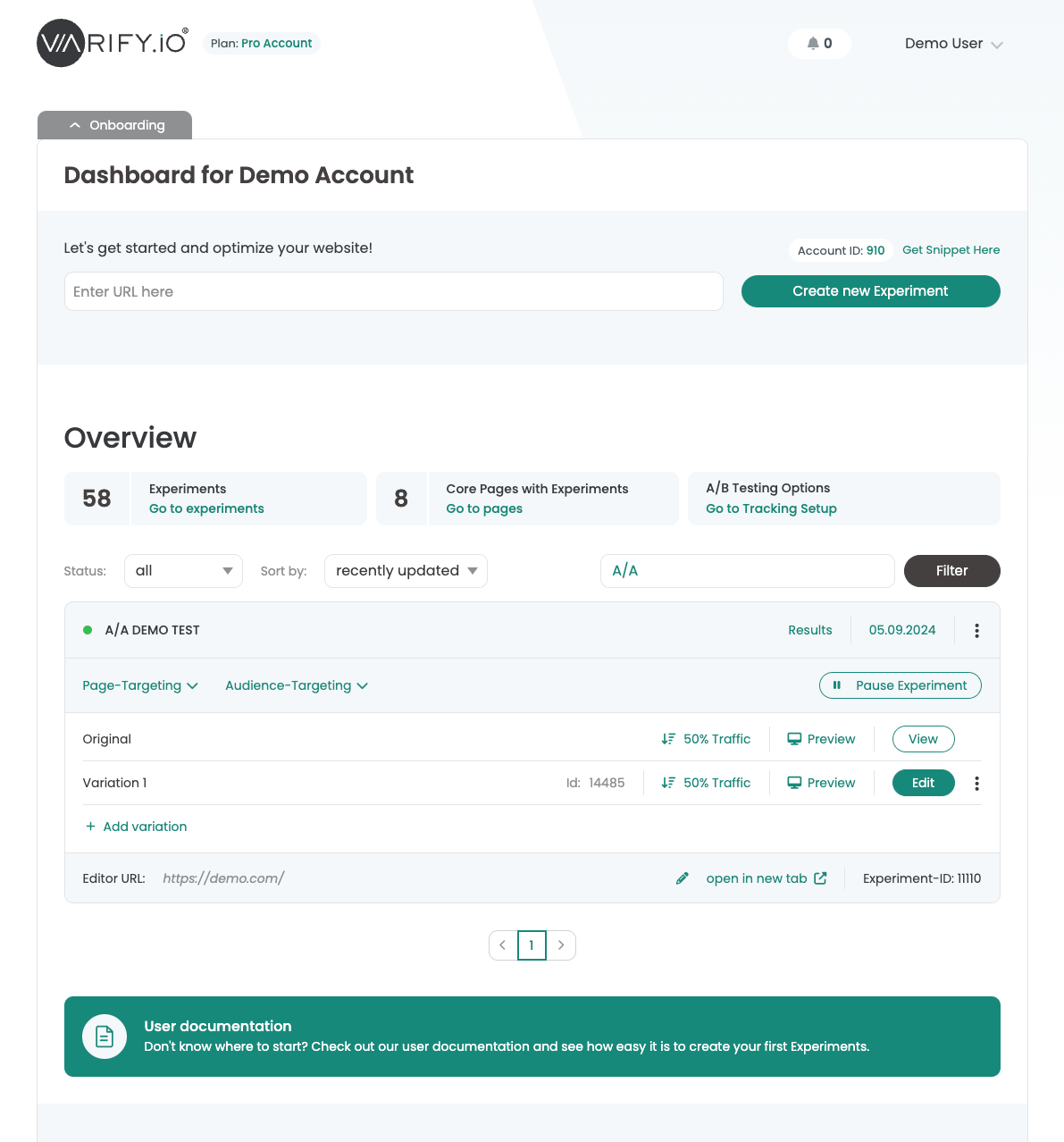
- Collapse onboarding — Fold the onboarding in or out to keep the dashboard clear
- Account ID — Each Varify account has its own account ID. In Agency Accounts, the ID is individual for each client.
- Create experiment — Enter the URL of the page on which you would like to create an experiment. Then click on the "Create new Experiment" button to open the editor.
- Get Snippet here — You can find your Varify snippet here. Add it to your website to start testing. Learn more
- Status filter and sorting — Filter your dashboard by experiment status or sort your experiments by the last update.
- Search — Search for your experiment using the experiment name.
- Experiment name and status — Here you will find the name of the experiment. The status dot next to it shows you whether your experiment is active or not.
- Results button — If you use the Varify In-tool evaluation, you will find your test results here. The button appears as soon as the experiment has been started. Learn more
- Start/Stop button — Start or stop your experiments with this button. You can start an experiment as soon as a page targeting has been stored. Learn more