HubSpot
Table of contents
In short
Varify can automatically send your experiment data to HubSpot. You choose whether HubSpot only stores each contact's current variation or logs every assignment on the contact timeline.
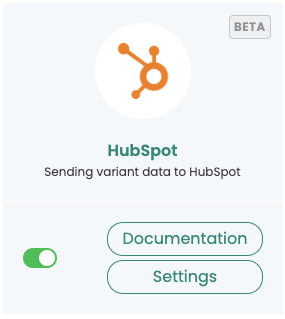
How to enable the integration
- Click „Settings“.
- Select an integration method: „Simple“ or „Custom Event“.
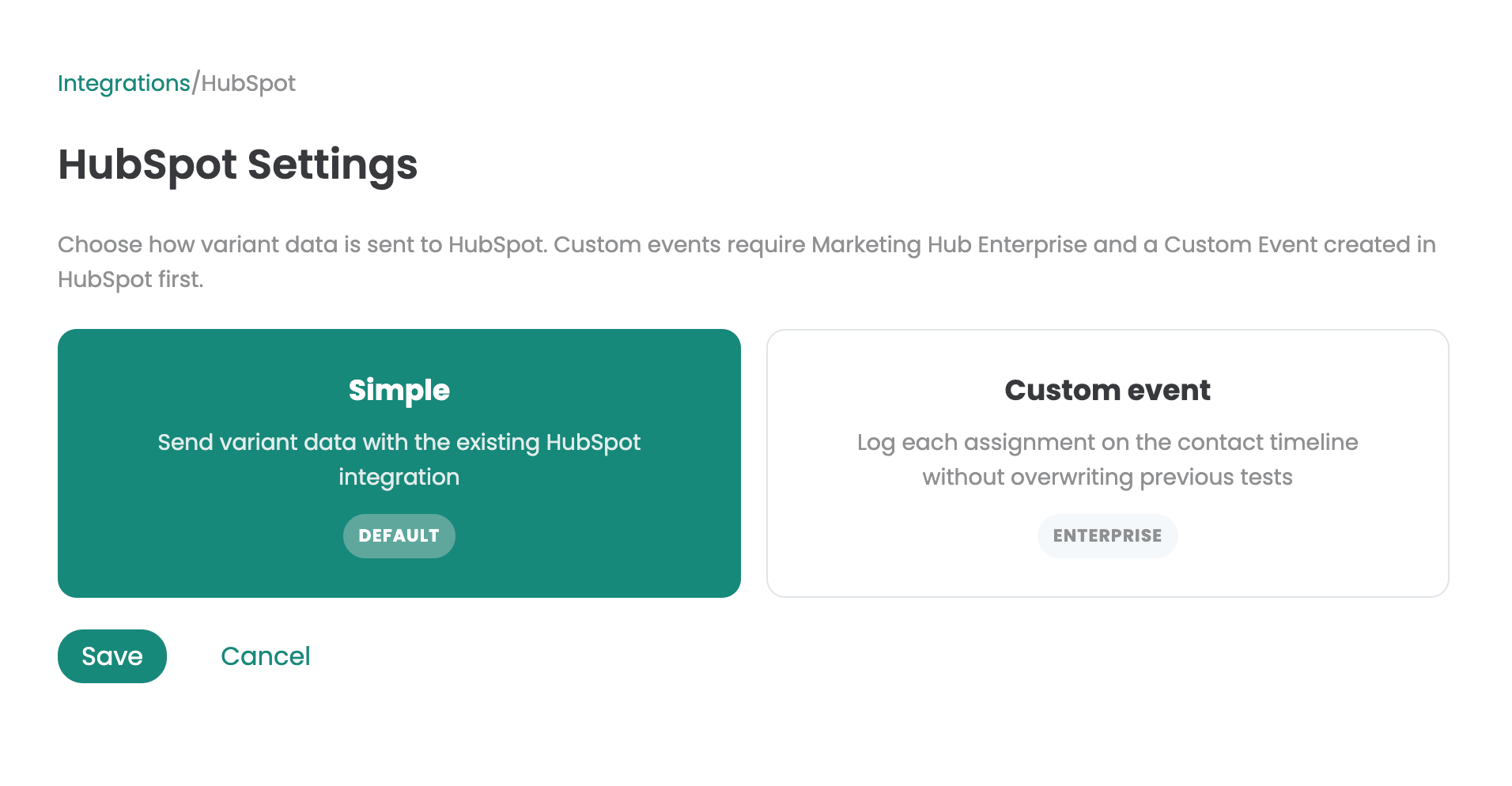
Select an integration method
Specify how Varify should send the variation data to HubSpot:
- Simple (Default): sends the variation data via the existing HubSpot integration.
- Custom Event: logs each assignment individually on the contact timeline without overwriting previous experiments.
important
For Custom Event, you need a HubSpot Enterprise Subscription and a custom event that you have already created in HubSpot.
Which method is right for you?
- If it's enough for you to know the current variation for each contact, select Simple. It is sufficient for most cases, and no additional configuration is needed.
- If you want to review a contact's entire experiment history, select Custom Event. Set up the custom event in HubSpot first.
How to create the custom event in HubSpot
- In HubSpot, open „Data Management“.
- Go to „Event Management“.
- Click „Create an Event“.
- Select „Create a Custom Event“.