PostHog Tracking
In short
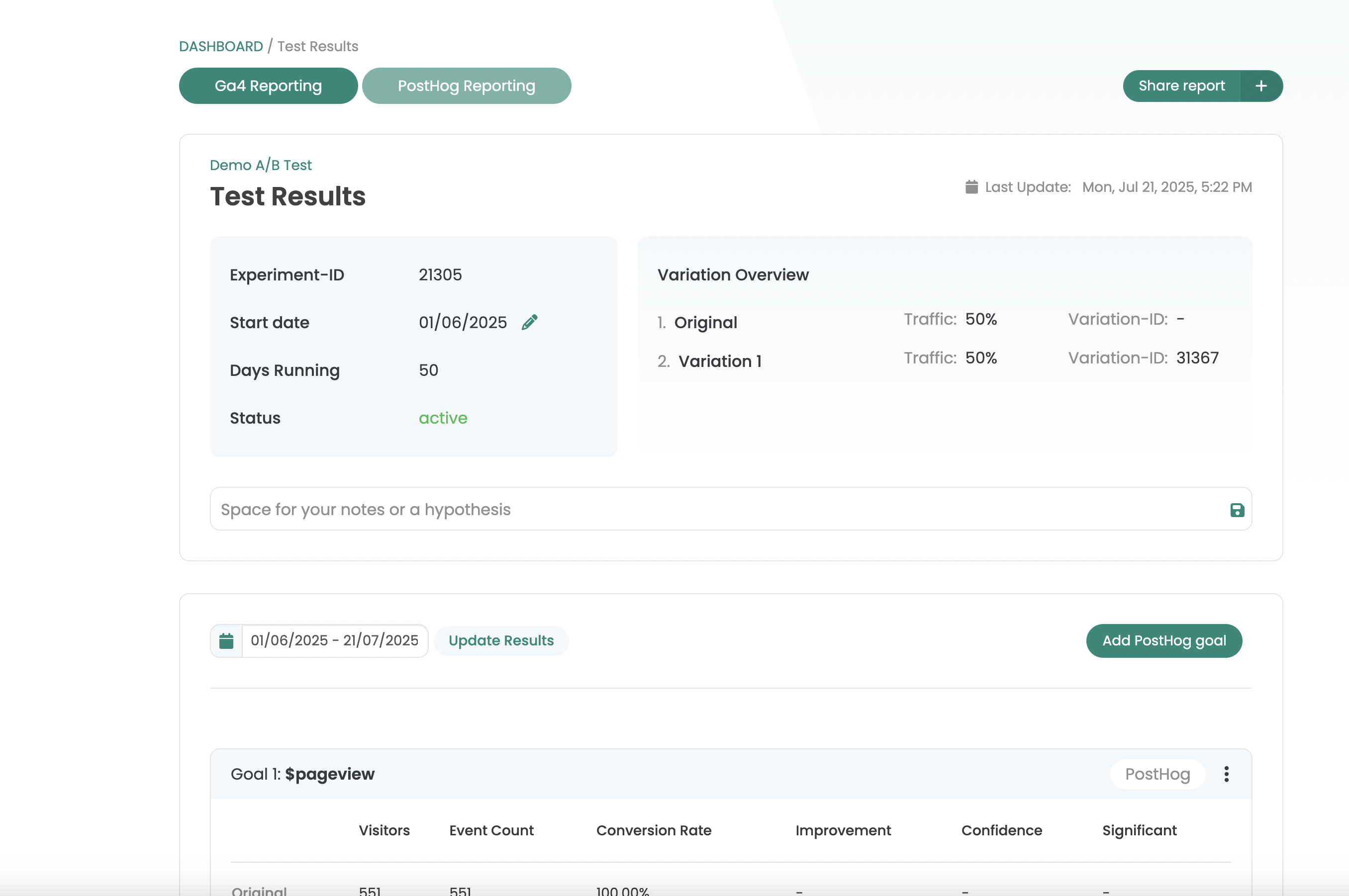
Connect your PostHog Webanalytics account with Varify and analyze your experiments directly with the event and click metrics from PostHog. The events will appear in the Varify report about 3-4 minutes after they have been triggered on your website.
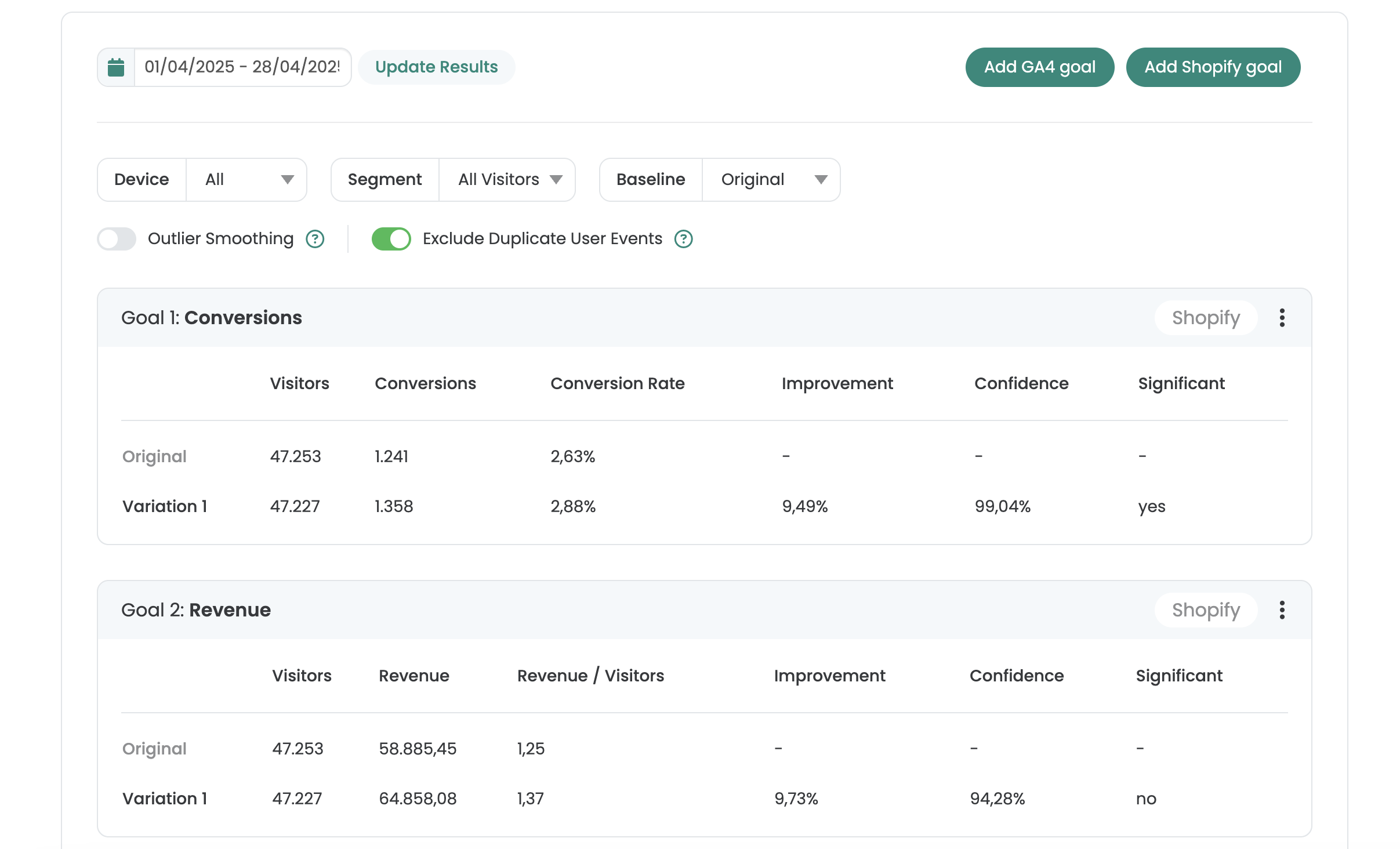
How to use PostHog tracking data
Step 1: Activate the PostHog integration
The PostHog integration is currently only available to selected customers. Please contact our support team if you would like to use it. We will then help you with the setup. [email protected]
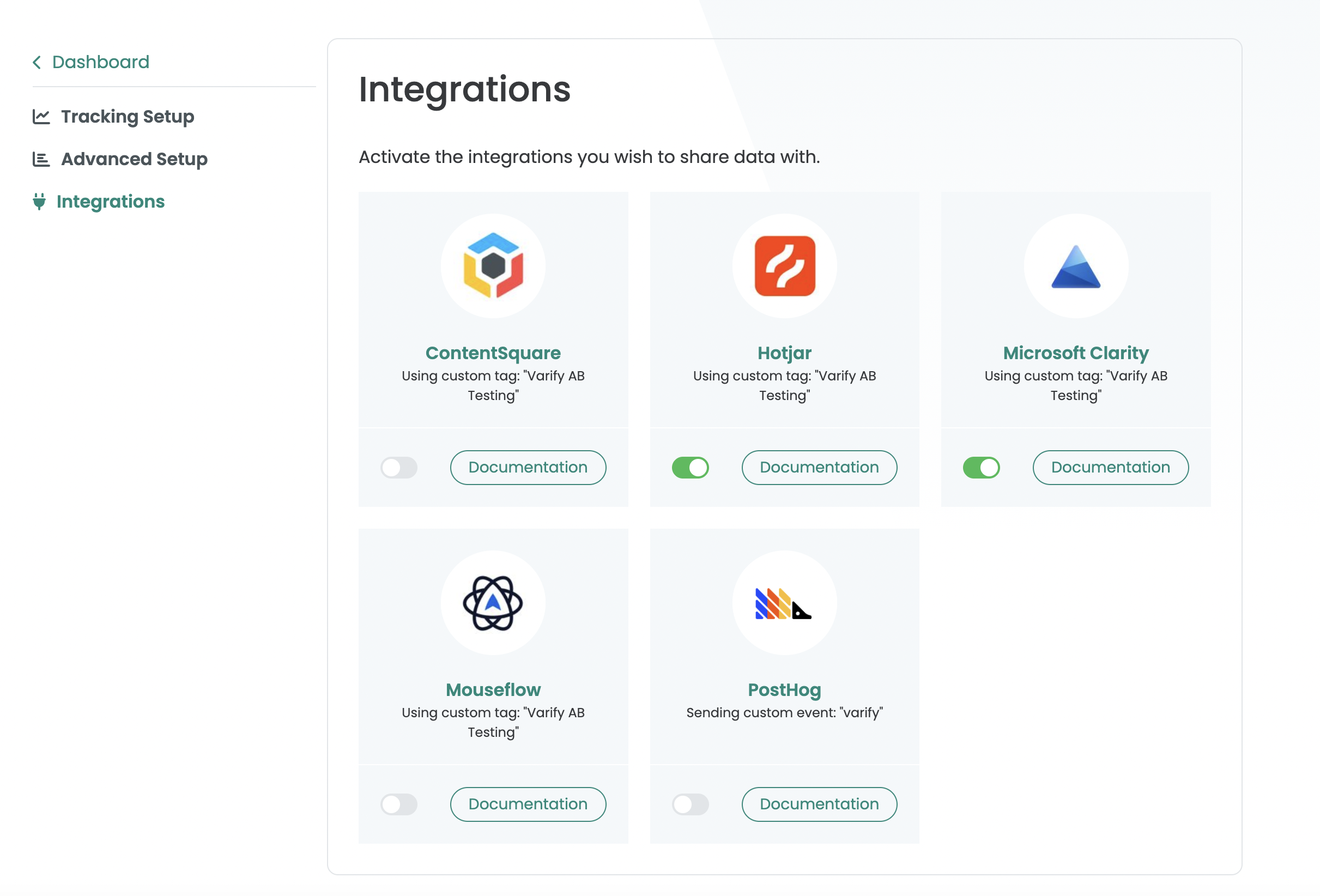
Step 2: Activate the PostHog integration and set it up
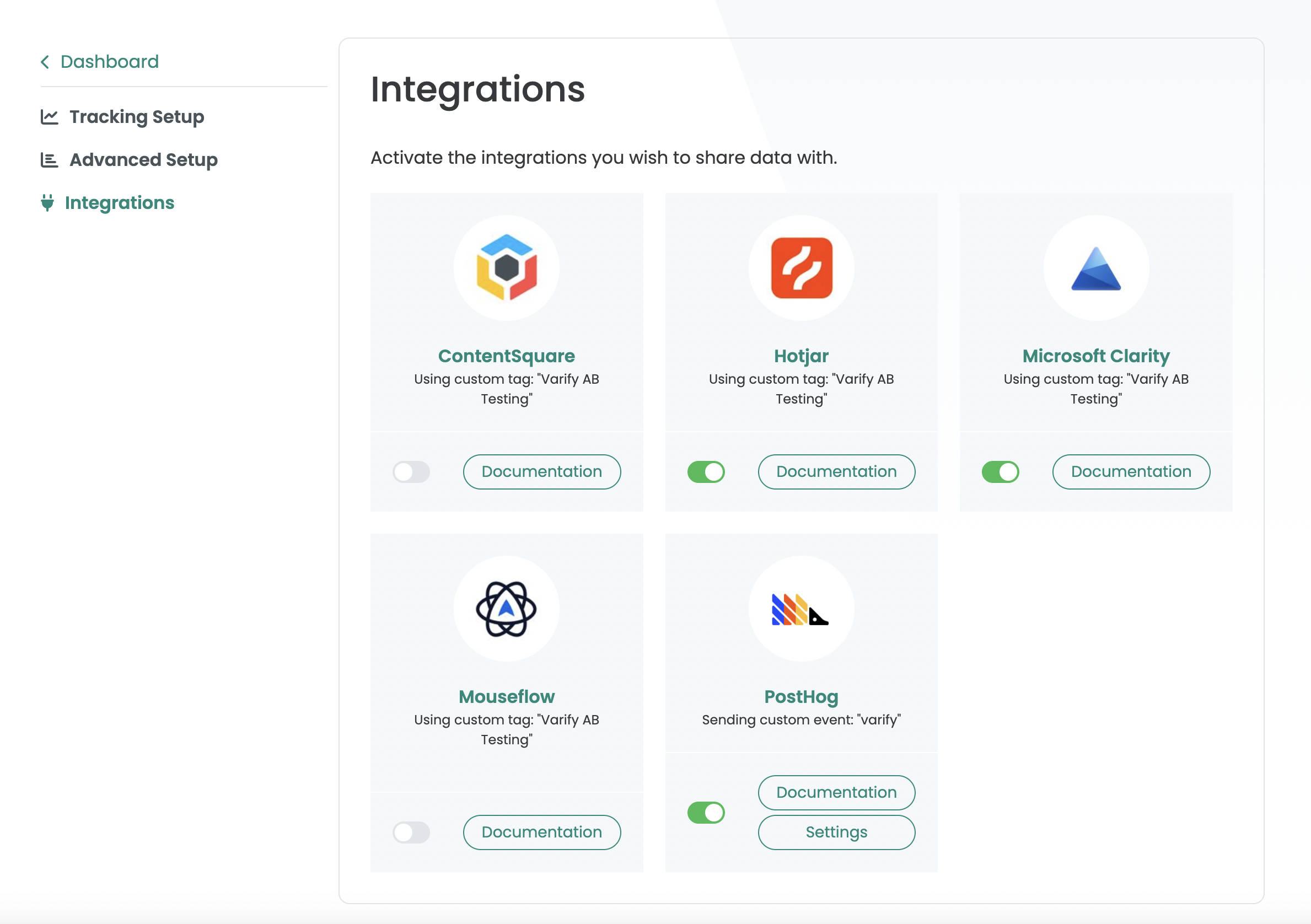
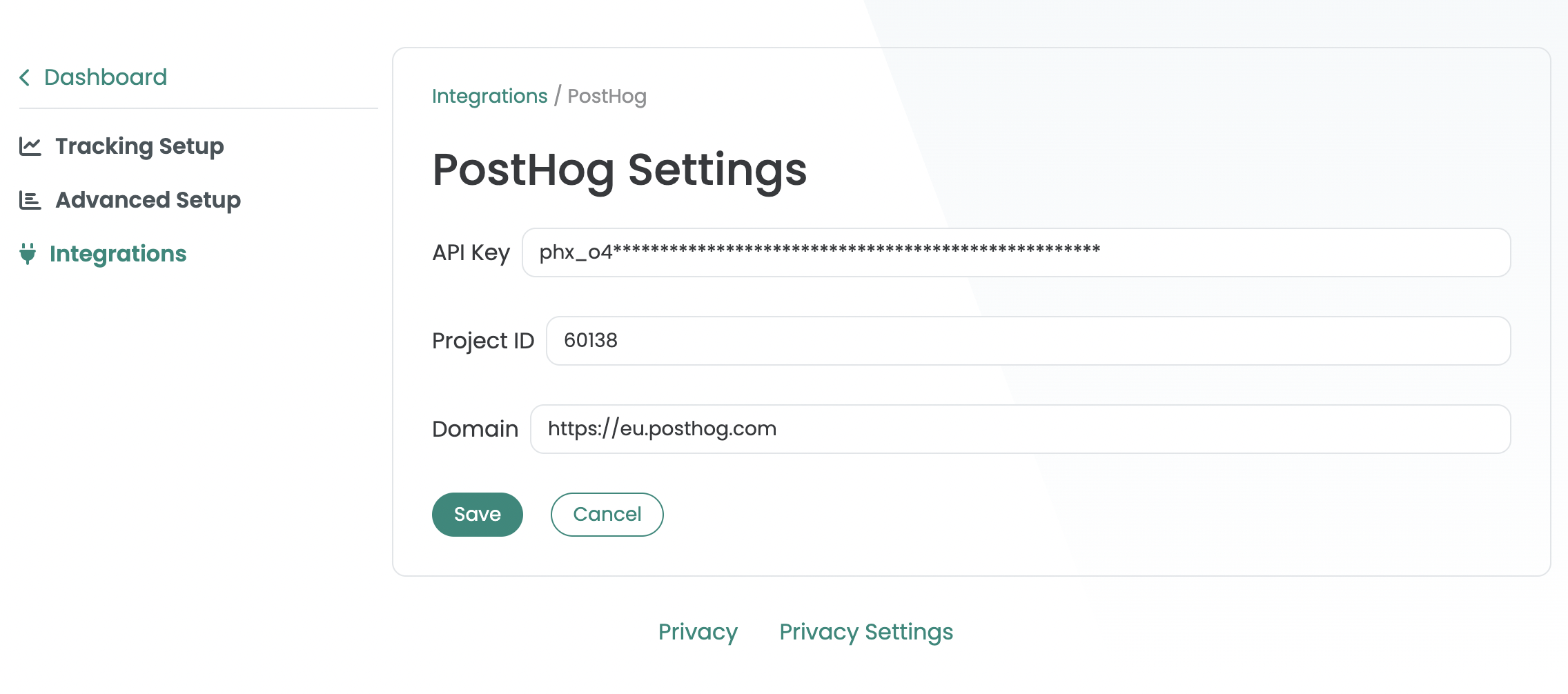
Activate the PostHog integration by activating the switch. Then click on Settings. Then go to your PostHog account and click on Settings. Here you will find the menu item "Personal API keys". Open the menu item and then click on "Create personal API key". Copy the API key and paste it into the "API key" field in Varify.
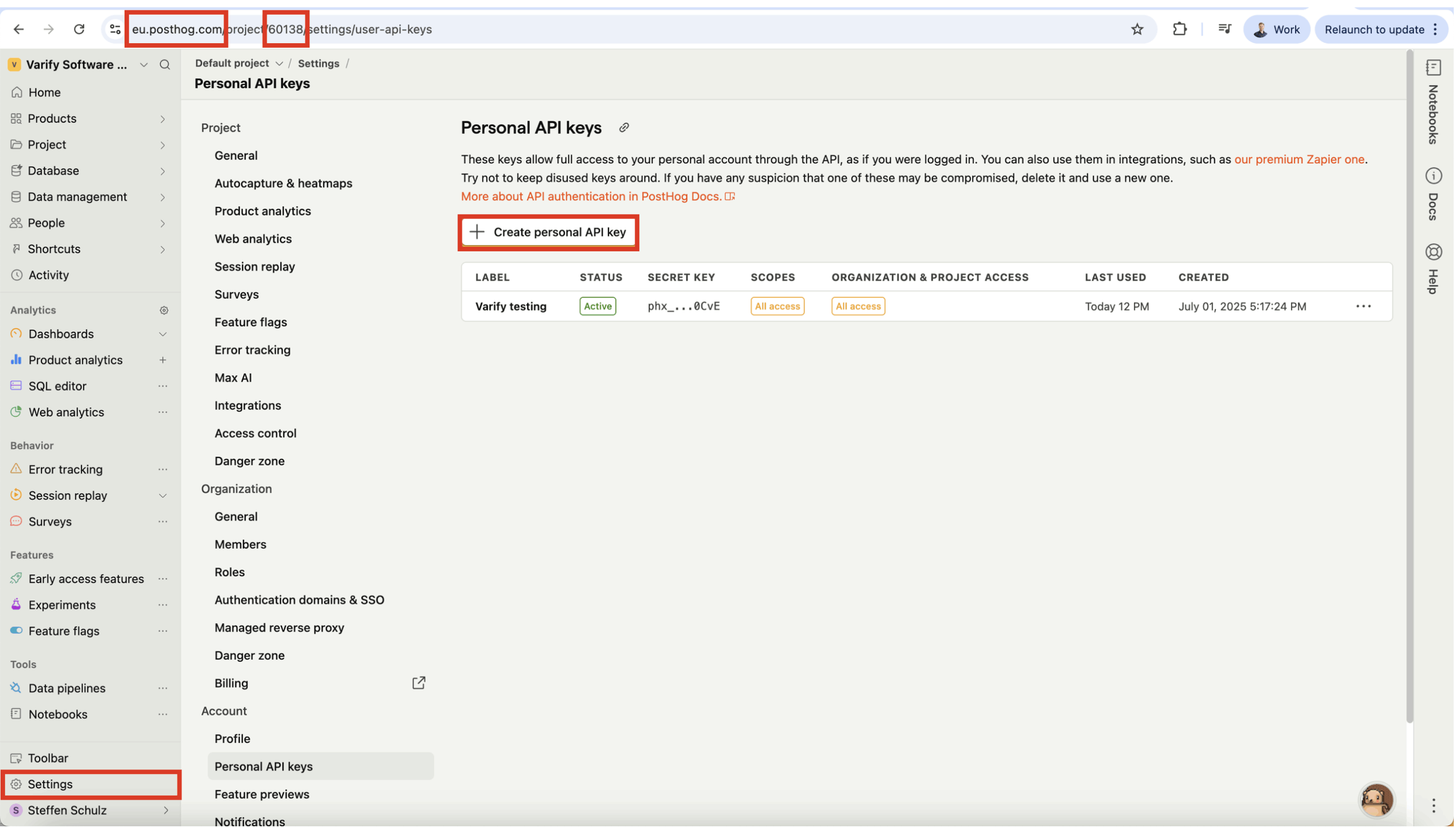
After you have added the "API Key", copy the Project ID and the domain from the PostHogURL and paste them into the PostHog Settings in Varify. Save the setting.
Step 3: Start a new experiment and open the report
As soon as PostHog is successfully connected to Varify, Varify automatically transmits events for newly created experiments to PostHog. You can then use the "Add PostHog goal" button to import events from PostHog that you want to use for the evaluation of your A/B test.