Tracking setup: Automatic with user consent
Step-by-step demo
Step-by-Step Tutorial
Customize Google Tag Manager for auto-tracking with user consent
Tracking Setup Wizard setting
If you are in the Tracking Setup Wizard you choose the automatic analytics integration and want to use it with user consent, additional adjustments are required in GTM. Without these adjustments, no tracking events with user consent are sent to Google Analytics sent.
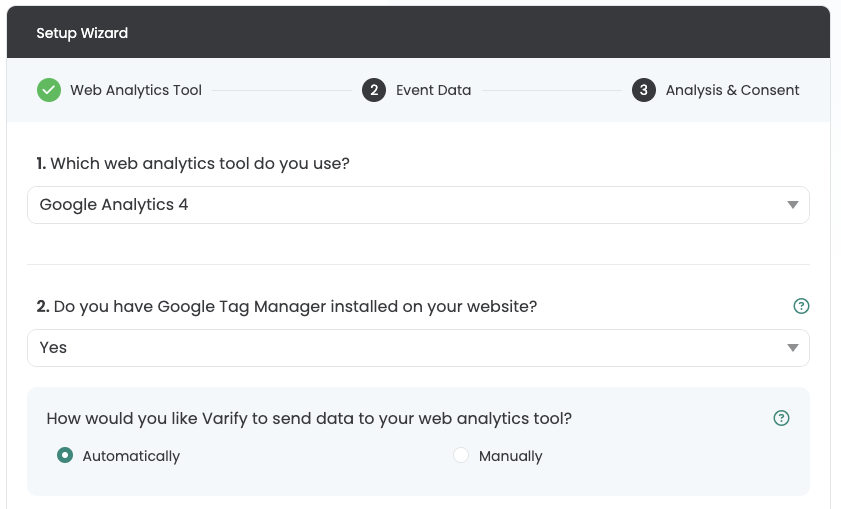
Adjustments to the Google Tag Manager
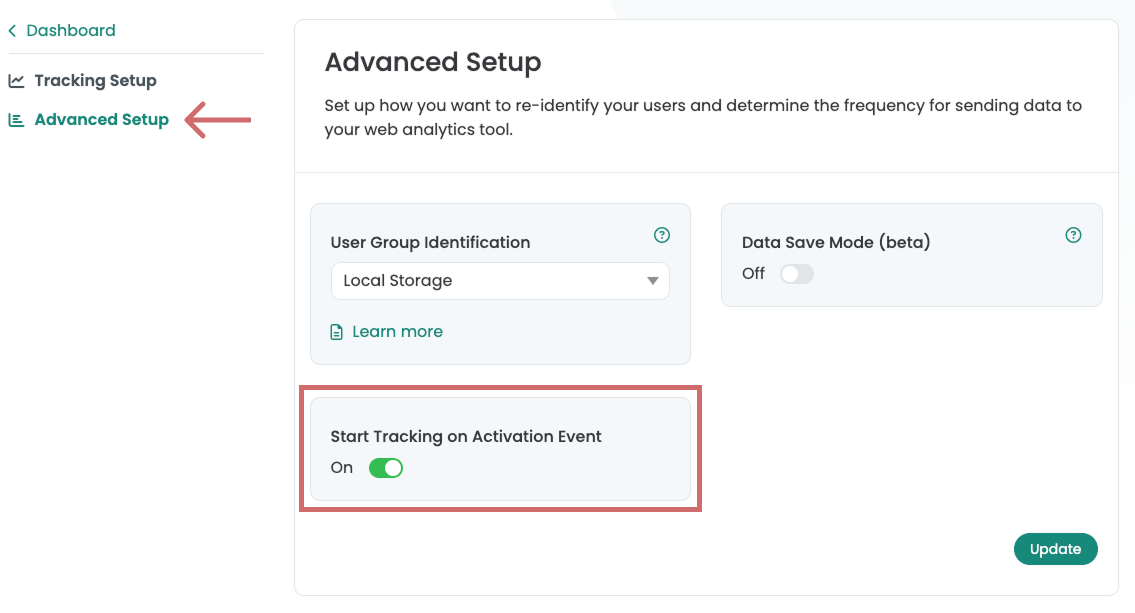
1. start tracking on activation event
Under Advanced Setup you will find the setting Start Tracking on Activation Eventwhich activated by default is. This setting separates the display of variants from tracking.
Varify tracking events are only pushed into the data layer when a specific Activate Tracking Script has been executed. This ensures that the events are only executed after a complete GA4 configuration be sent, whereby "Not Set" sessions be prevented.
If the GA4 configuration is also bound to a user consent, Varify events are only fired with user consent.
Important: An additional HTML tag must be created, which is fired after the GA4 configuration
-> see steps 2 & 3
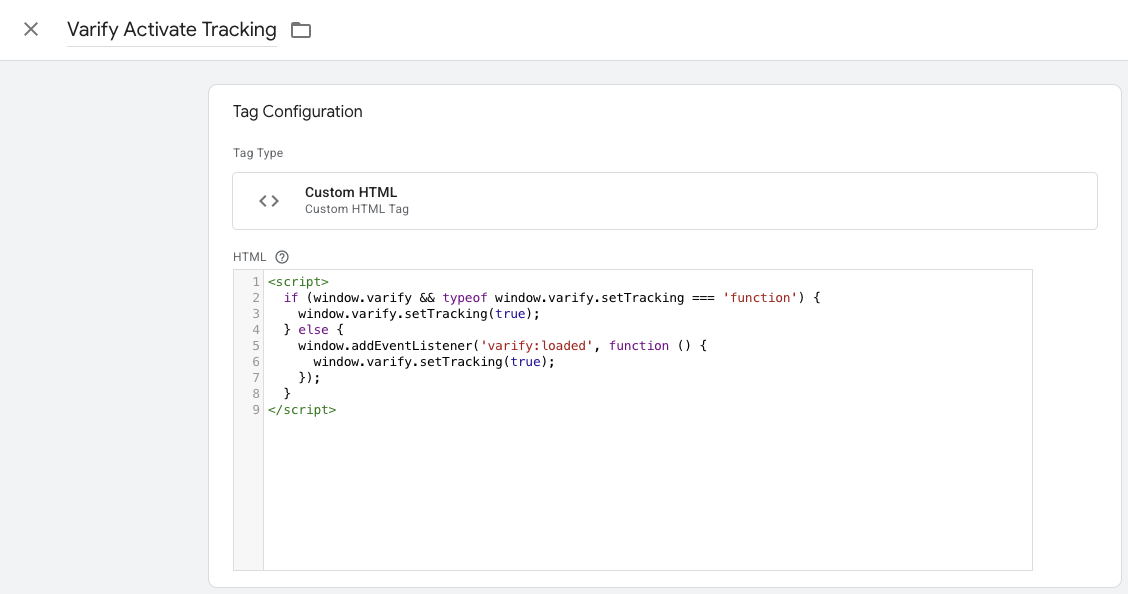
2. create a new custom HTML tag in the GTM
- Go to Tags in the Google Tag Manager and click on New. Now create a new custom HTML tag here.
- Name the tag: "Varify Activate Tracking"
- Paste the following code into the HTML field:
- Save the tag. Confirm that the day without trigger is to be saved.
<script>
  if (window.varify && typeof window.varify.setTracking === 'function') {
    window.varify.setTracking(true);
  } else {
    window.addEventListener('varify:loaded', function () {
      window.varify.setTracking(true);
    });
  }
</script>
We have been using an updated Activate Tracking Script since 29.10.2025.
However, all previously implemented scripts remain valid and continue to function without any adjustments.
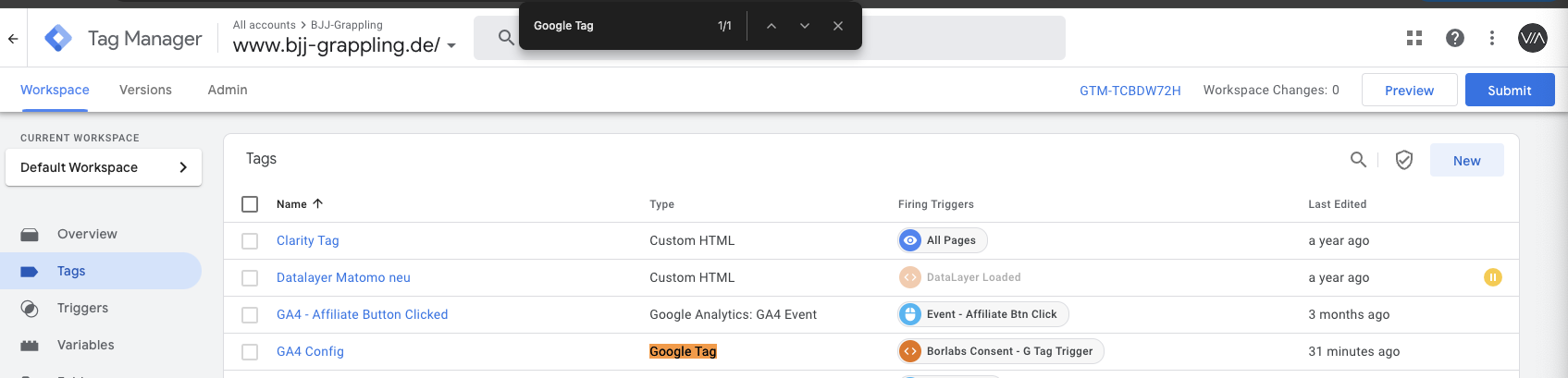
3. customize Google Tag configuration tag
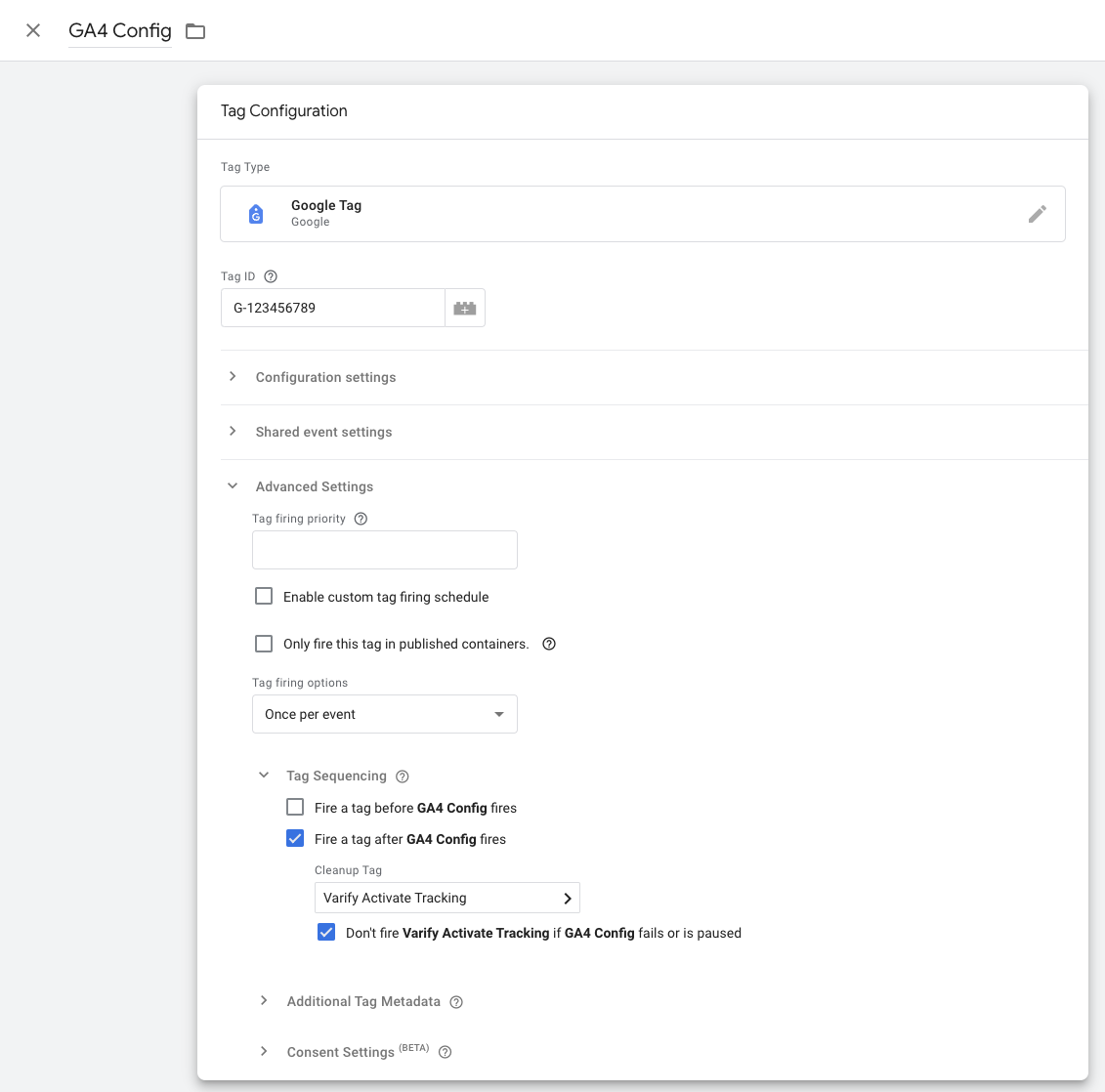
- Now go to your GA4 configuration tag and open it. Note: The easiest way to find it is to navigate to your tags and search for "Google Tag" with Ctrl+F
- Click in the Tag Configuration area and select Advanced Settings and Tag Sequencing.
-
- now click on "Fire a tag after GA4 Config (The GA4 config tag) fires"
- Select the Varify Active Tracking Tag you have just created.
- Check the box below that says „Don’t fire” Varify Activate Tracking if GA4 Config “fails or is paused"
- Save the tag customization
4. publish GTM Container
To ensure that your adjustments in Google Tag Manager also work on your website, it is important to publish the changes.
To do this, go to "Overview" in the Tag Manager on the left. Here you can see an overview of all the elements you have just created.
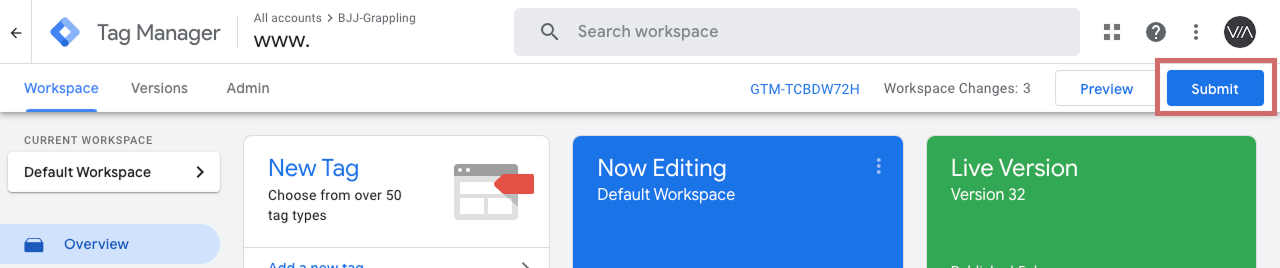
To publish, click on the blue "Publish" button at the top right and confirm. The tag is now live and sends the data to your Google Analytics.
Display the A/B test data in Varify.io
Check the tracking setup with an A/A test: Start an A/A test and check the tracking
Display the A/B test data in Varify.io
With the Varify.io Google Analytics 4 Connection, you can easily display your results directly in your Varify.io dashboard. You can find out how to do this here: To the result evaluation in Varify.io
Viewing the A/B test data in GA4
You can analyze the data of the variations of your A/B test in GA4 with the Explorative Data Analysis. You can find more information here: To evaluate the results in GA4