Direct integration with Google Analytics 4
IMPORTANT NOTICE:
The procedure for Google Analytics direct integration has changed slightly. The previous integrations continue to work as usual.
However, the new procedure is necessary to use the upcoming GA4 evaluation directly in Varify.io. If you have any questions, please contact our Support.
In short
Important Notice: This guide is only applicable if you are not using Google Tag Manager and GA4 directly is integrated on your website. If you have the Google Tag Manager in use, please see the section Tracking with GTM .
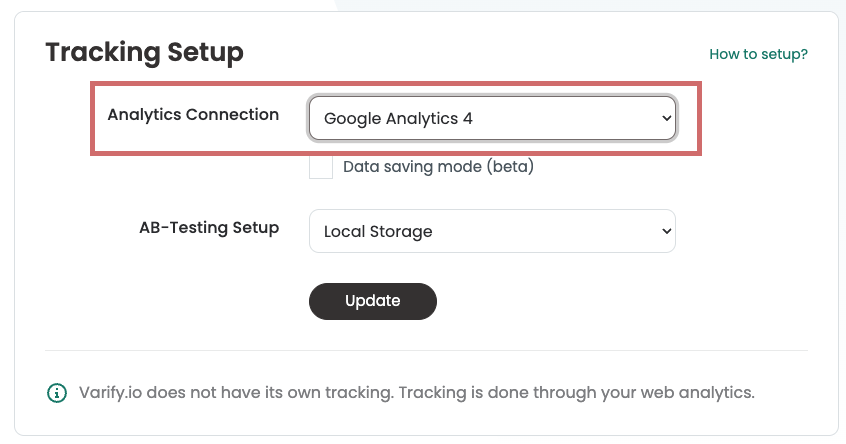
In the section Analytics Connection under the item A/B Testing Options You must select the „Google Analytics 4“ setting.
Setting the tracking setup in varify.io
IMPORTANT NOTE:
If Google Tag Manager is integrated on your site, we recommend integration via Google Tag Manager. Otherwise, the tracking of your experiments may not work.
To the Google Tag Manager integration
If you have any questions, please contact our Support.
For direct integration, you can easily set the A/B testing options in Varify. To do this, proceed as follows:
- Click on "Go to Tracking Setup" under "A/B Testing Options" in the dashboard
- Under „Analytics Connection,“ select "Google Analytics 4"
- Save the change by clicking „Update“

Setting up the user-defined dimension in GA4
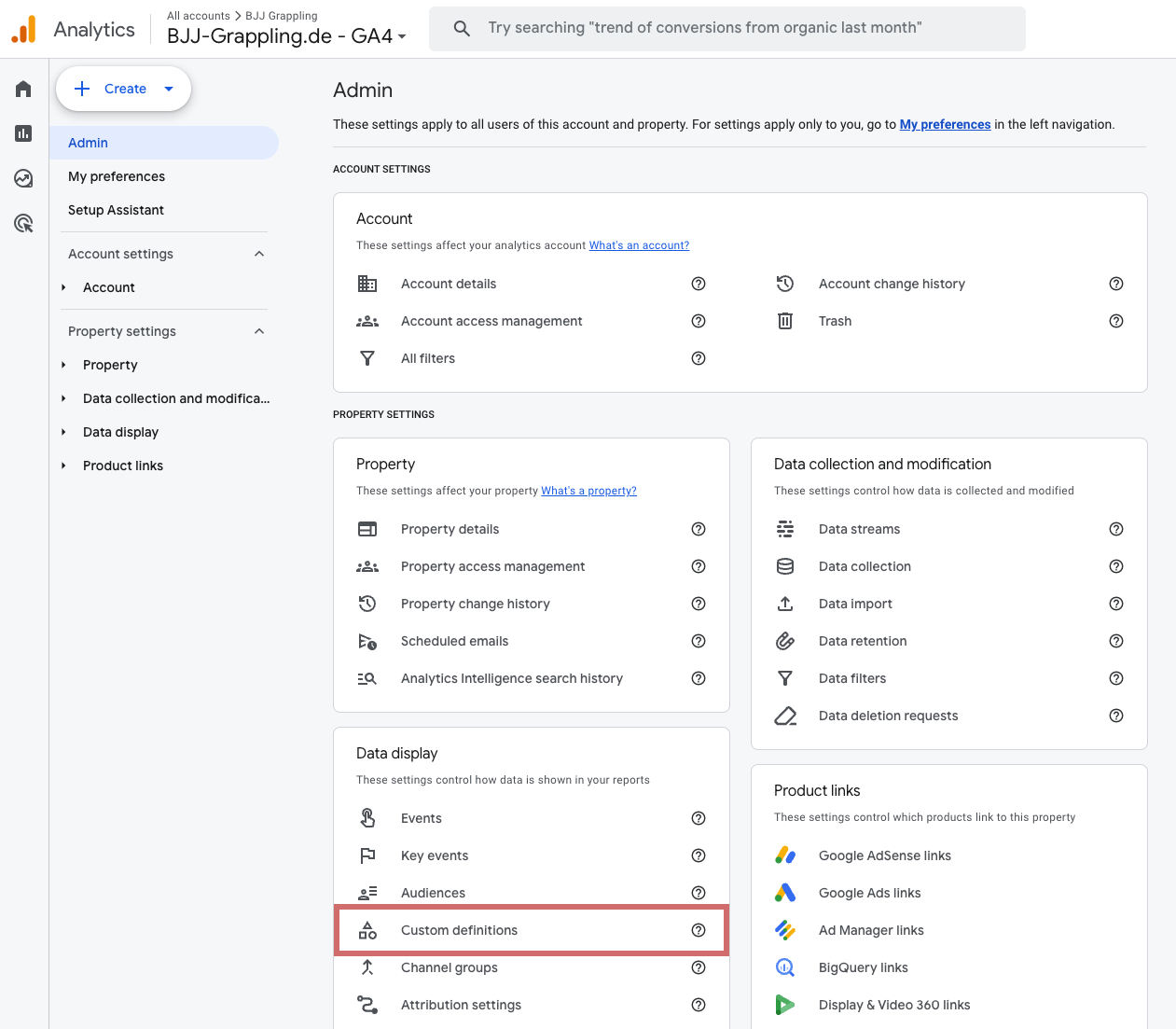
Step 1: Open the area for user-defined definitions in GA4
To do this, go to the settings of your Google Analytics account and navigate to "Custom Definitions". You will find this under "Data display".
Step 2: Create a custom dimension
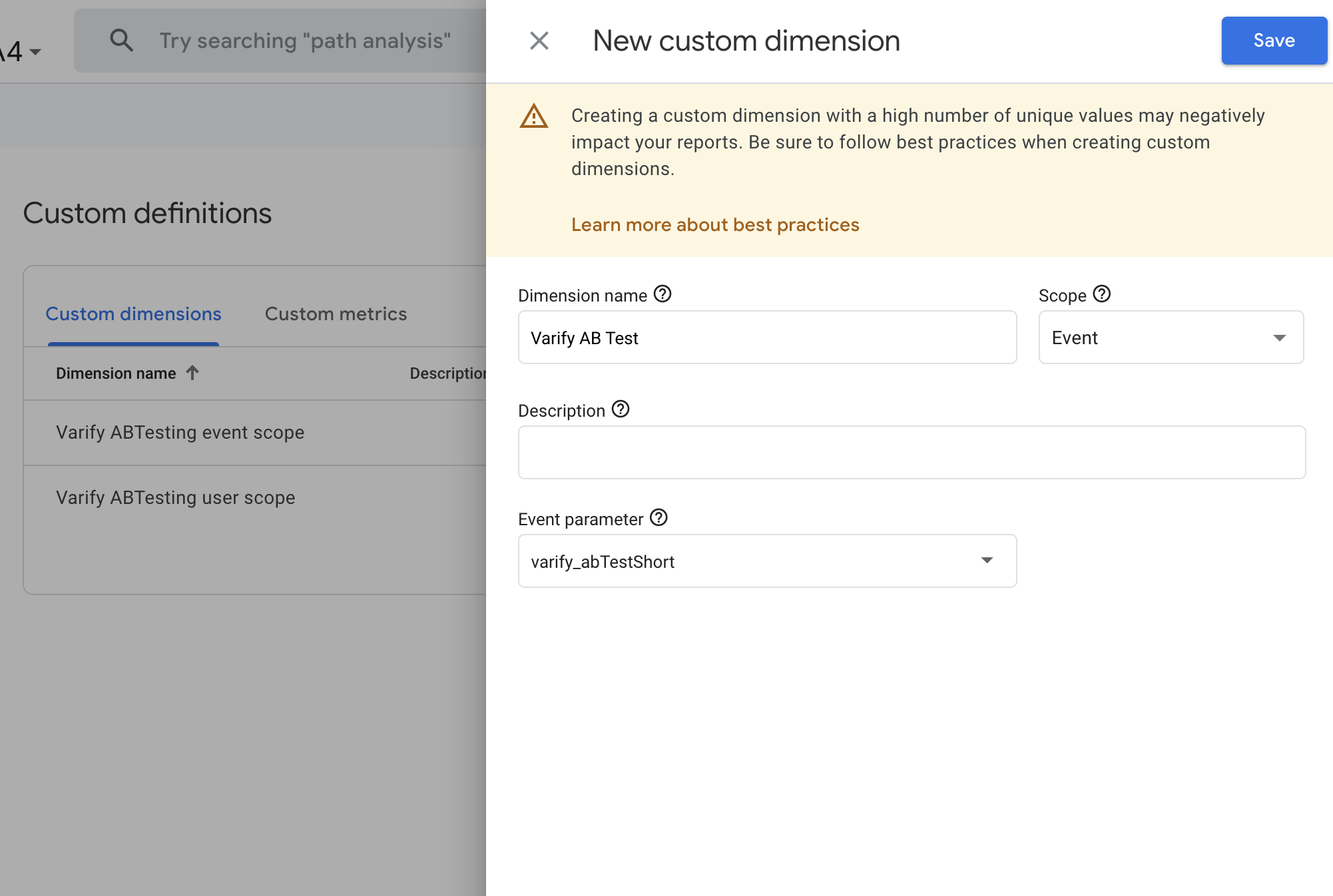
Now create a new user-defined dimension by clicking on the blue "Create new user-defined dimension" button.
Then define the following settings for the new dimension:
Name of the dimension: Varify AB Test (spelling obligatory)
- Scope: Event
- Event parameters:
varify_abTestShort(spelling obligatory) - Save the new user-defined dimension
Important note: You will be able to select the event parameter "varify_abTestShort" under the custom dimension only after GA4 has received the first test data from you. After that it can take up to 24 hours until you find the value in the dropdown.
Display the A/B test data in Varify.io
With the Varify.io Google Analytics 4 Connection, you can easily display your results directly in your Varify.io dashboard. You can find out how to do this here: To the result evaluation in Varify.io
Viewing the A/B test data in GA4
You can analyze the data of the variations of your A/B test in GA4 with the Explorative Data Analysis. You can find more information here: To evaluate the results in GA4