Connect Varify.io with BigQuery
In short
You can easily link your Varify.io account to your BigQuery project. To do this, go to your tracking settings in Varify.io and connect your Google account with Varify. You can then select your BigQuery project.
Is there already a BigQuery project for GA4?
To use Varify with BigQuery, you connect a BigQuery project in which the GA4 data is exported. You can either select an existing project or create and connect a new project with the one-click auto setup.
YES, there is already a BQ project linked to GA4
- Connection to an existing BigQuery GA4 project
- Connection to a manually set up BigQuery GA4 project
NO there is no BQ project connected to GA4 yet
- Ideal if no BigQuery GA4 project exists yet
- Simple one-click setup
Connect existing BigQuery GA4 project
Link an existing BigQuery project to which Google Analytics data is exported.
Proceed as follows:
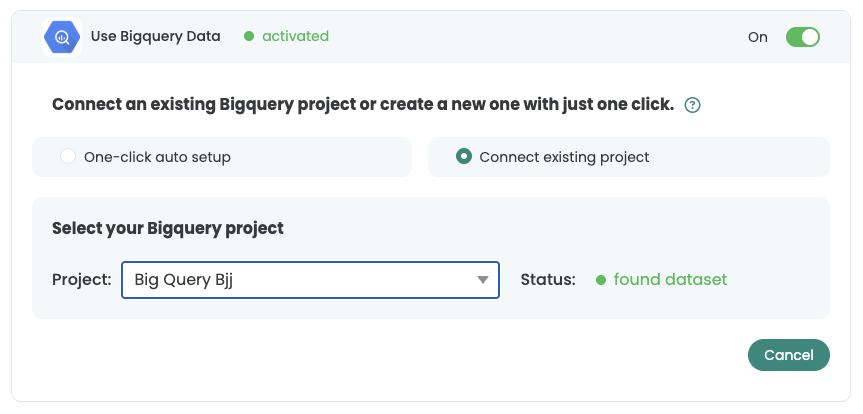
- Open the tracking setup in Varify.
- Scroll to "Use BigQueryData".
- Activate the feature with the switch.
- Select "Connect existing project".
- Select the appropriate BigQuery project under "Project".
- If a suitable dataset already exists, the status "found dataset" appears.
- Confirm with "Update".
In the linked BigQuery project, ensure that in GA4 both the Event Dataas well as User Data is exported daily.
Every Varify account user can activate the dataset → It is important that the user of the Google connection has the authorization to add the project.
Create and connect new BigQuery project with one-click auto-setup
If you do not yet have a BigQuery project for your GA4 data, you can either create a new project Create manually or use the one-click auto setup in Varify to create a project automatically.
1. create project with the one-click auto-setup
First create a new BigQuery project with one click.
Proceed as follows:
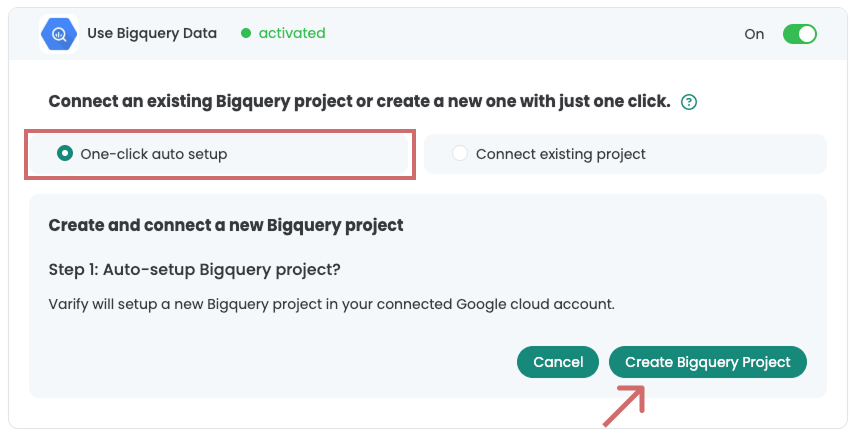
- Open the tracking setup in Varify.
- Scroll to "Use BigQueryData".
- Check the „Use BigQuery Data“ box.
- Select "One-click auto-setup".
- Click on "Create BigQuery Project"
The project is created for the Google account that was connected to the Varify tracking setup.
2. link project with GA4 according to instructions
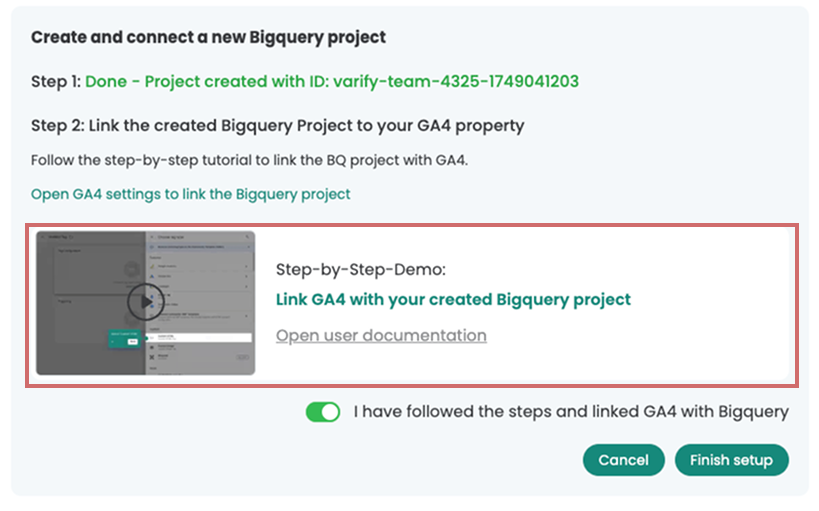
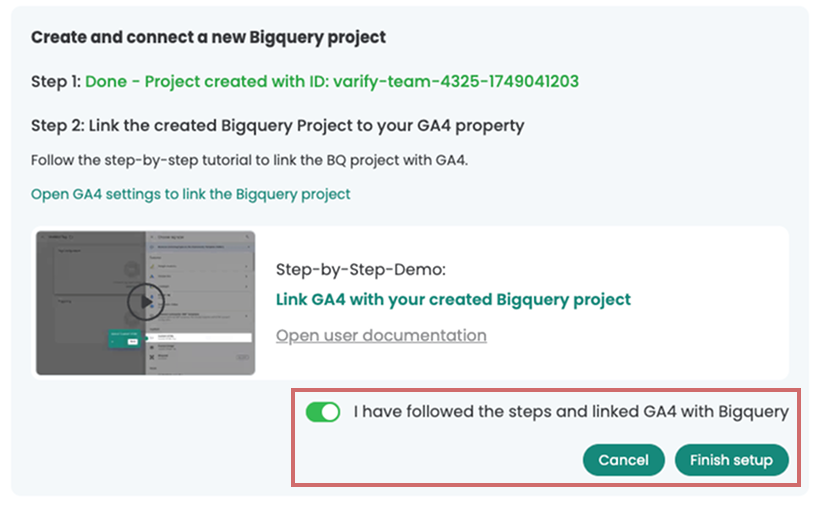
After you have created a new BigQuery project using the one-click auto setup, you will see the project ID highlighted in green. You will need this project ID in a moment.
The project was created in the Google account that is connected to Varify via the tracking setup.

Now link the new project to your GA4 property to export the GA4 event and user data to BigQuery.
Follow either the steps in the step-by-step guide or this article: Connect BigQuery Auto-Setup with GA4.
3. confirm and complete the link in Varify
To make the BigQuery Goals available in reporting, confirm and complete the setup in Varify. Proceed as follows:
- Confirm in Varify that you have linked the project to GA4 as described above
- Click „Finish Setup“
Add BigQuery Goals to the report
You can add a BigQuery Goal to your reports just as easily as the GA4 Goals.
This is how you proceed:
- Start the experiment and click on the "Results" button.
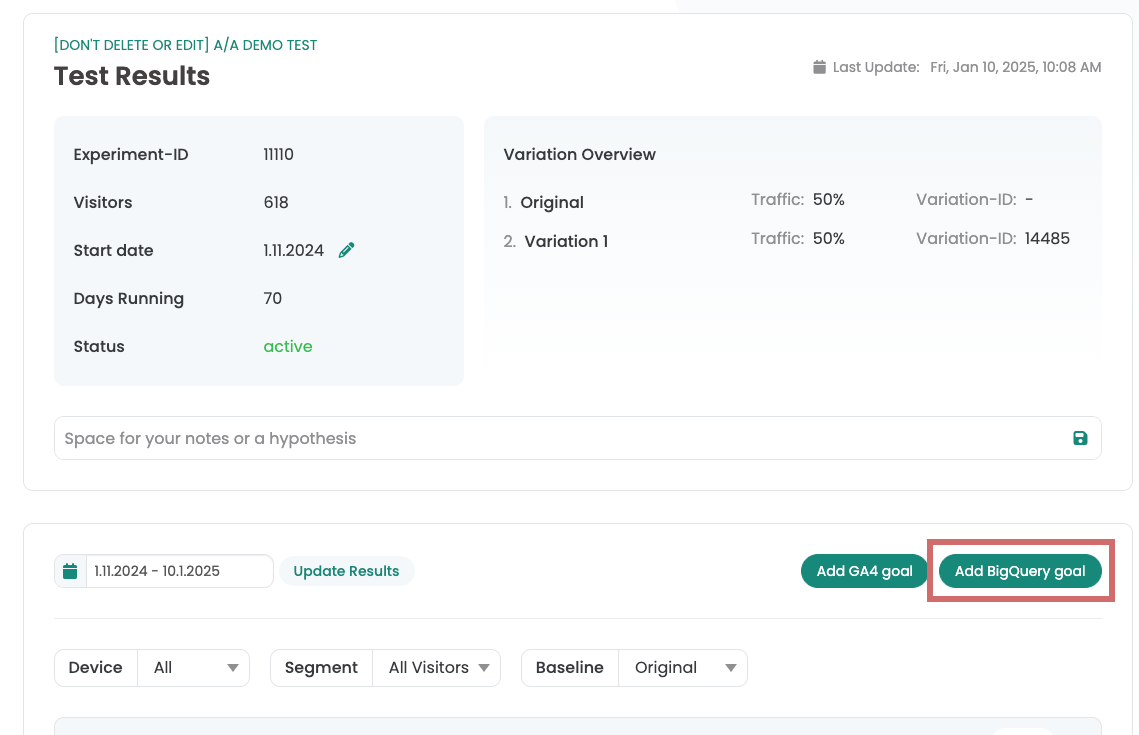
- Click on "Add BigQuery Goal" (This button only appears after a successful connection to the BigQuery project)
- Select the event you want to measure, e.g. "Purchases".
- In the second drop-down menu, you specify the counting method:
- CountCounts the triggered events.
- RevenueCounts the revenue value of the event (relevant for purchase events).
- Confirm with the green tick.