Connect BigQuery Auto-Setup with GA4
Table of contents
Step-by-Step Tutorial
Connect your BigQuery project with GA4
1. created BigQuery project correctly?
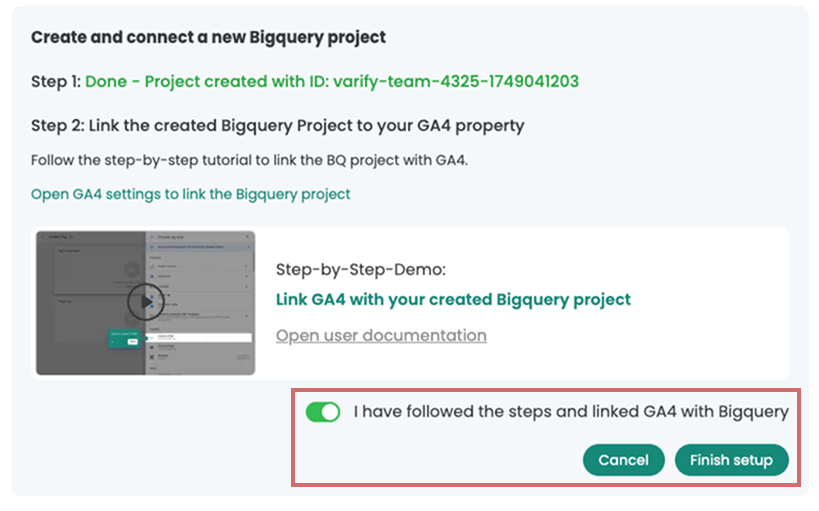
After you have created a new BigQuery project using the one-click auto setup, you will see its project ID highlighted in green. You will need this project ID straight away.
The project was created in the Google account that was connected to Varify via the tracking setup.

2. connect Google Analytics property with project
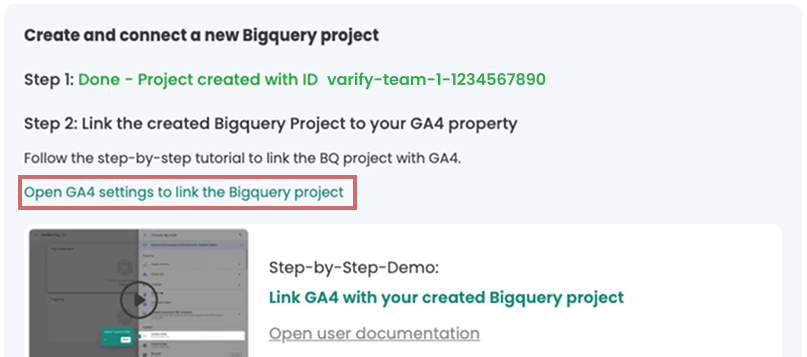
- Click the link „Open GA4 settings to link the BigQuery project.“.
- You can also access the area yourself via GA4:
Admin > Product links > BigQuery links > Link - In both cases, make sure that you are in the correct GA4 property
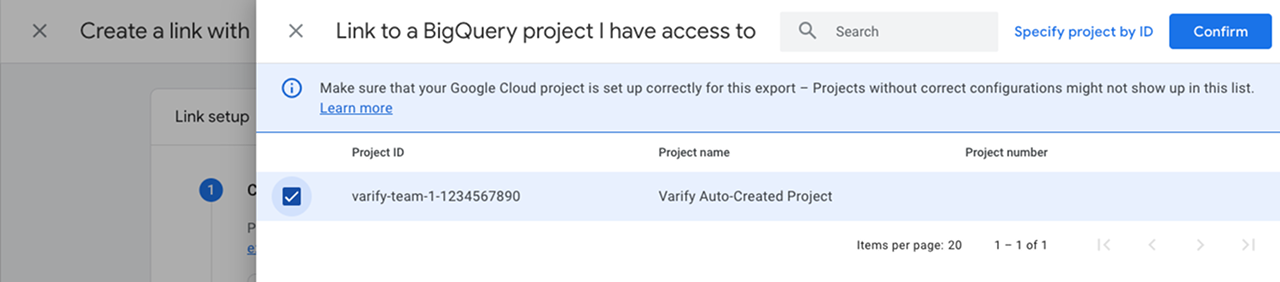
- Click „Choose a BigQuery project“ to link a project
- Select the project from the list with the project ID that is displayed in Varify.
- Click „Confirm“ to confirm“
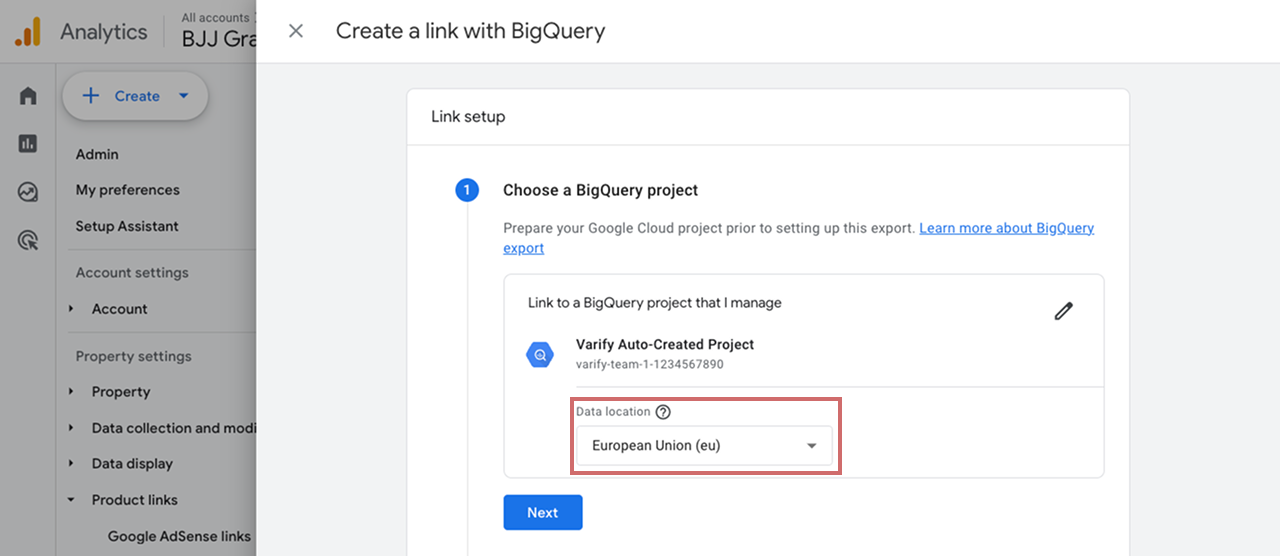
- Now select a storage location for the export data from GA4 in your BigQuery in your project.
- Click „Next“
- Select the „Daily“ export type for the event data
- Select the „Daily“ export type for User Data as well“
- Confirm by clicking „Next“
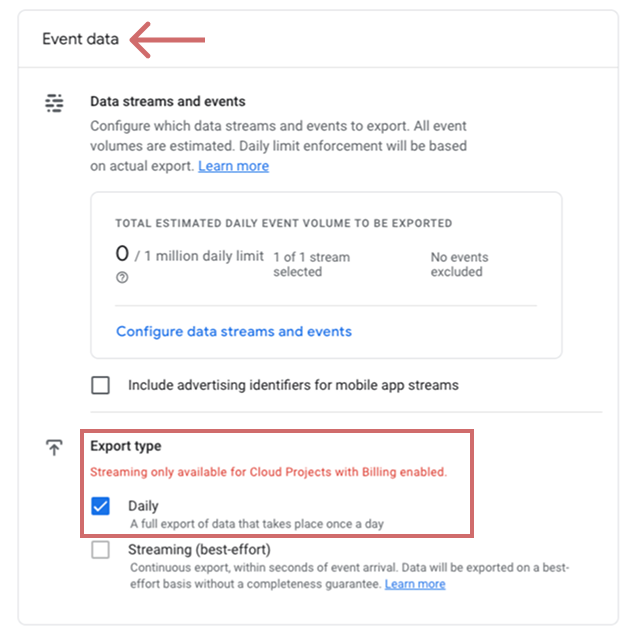
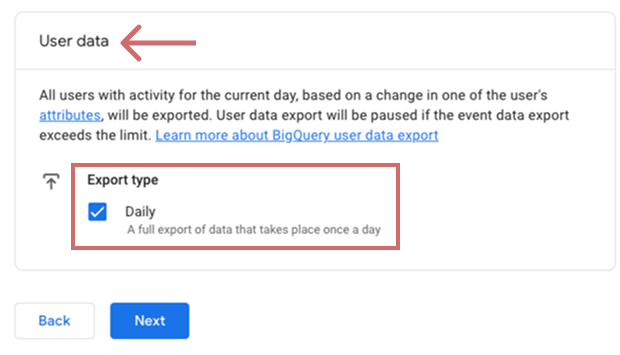
- Check your settings
- Correct project ID
- Storage location selected
- Daily Export Type selected for Event and User Data
- Complete the link by clicking „Submit“
3. complete the setup in Varify
- Confirm in Varify that you have linked the project to GA4 as described above
- Click „Finish Setup“